AI Videos for Online Courses
Turn a course outline into lesson covers, explainer b-roll, promo clips and module thumbnails — without juggling a dozen tools.
June 16, 2026
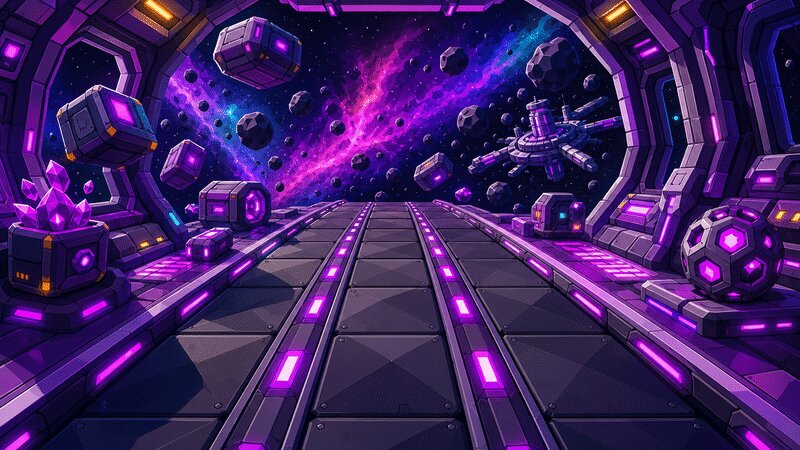
Course creators need a steady stream of visuals — lesson covers, short explainer b-roll, a promo clip for the sales page, and a clean thumbnail for every module. kublaro generates all of it from plain prompts, and its Smart Routing sends each task to the best-fit model instead of asking you to learn ten tools. You describe the outcome; kublaro picks the engine, generates the asset, and lets you export up to 4K.
What you can make for a course
- Lesson cover visuals — a consistent header image for each lesson, matched to your topic and color palette.
- Explainer b-roll — short abstract or scene clips to lay under a voiceover or screen recording.
- Promo and trailer clips — a 5-10 second hook for your sales page, email, or social.
- Module thumbnails — clean, legible tiles that read well at small sizes inside an LMS grid.
- Concept and diagram art — stylized stills that illustrate an idea your screen capture can't.
The point is not to replace your teaching — it's to remove the bottleneck of sourcing or designing a visual for every single screen.
Why Smart Routing matters here
A great lesson cover and a great explainer clip are different jobs, and no single model wins at both. kublaro's Smart Routing reads your request and routes it:
- Crisp, text-friendly stills for covers and thumbnails go to SOTA diffusion models — Seedream, Flux, Imagen-class or GPT-image-class.
- Motion tasks route to video models like Kling 3.0, Veo 3.1, Seedance 2.0 or Hailuo 02, chosen for your prompt and pacing.
- When you animate an existing frame, the image-to-video path picks a model suited to that source.
Because routing derives from the current lineup, you get strong results without tracking which model is hot this month. That's the whole idea: outcome in, best engine out.
How to make course videos with kublaro
- Outline your visuals. List the covers, b-roll, promo, and thumbnails you need per module so the look stays consistent.
- Create an account and open the generator.
- Start with stills. Use text-to-image or the AI image generator to produce lesson covers and concept art. Describe subject, mood, and palette.
- Animate the ones that need motion. Send a cover or a fresh frame into image-to-video for explainer b-roll or an intro stinger.
- Build thumbnails. Use the thumbnail maker for module tiles that stay legible at small sizes.
- Cut your promo. Generate a short hook clip, then assemble it in any editor with your title card and captions.
- Export up to 4K and drop assets into your course player or sales page.
Keep a consistent look across modules
Course visuals work best when they feel like one set. A few habits help:
- Reuse the same palette, lighting, and framing language in every prompt.
- Keep a short style note ("flat editorial, soft warm light, single accent color") and paste it into each generation.
- Generate covers in a batch so the series reads as a unit.
- For thumbnails, favor simple compositions and high contrast — fine detail disappears at grid size.
If you want sharper prompt control, the AI image prompting guide walks through structure, lighting, and style cues that carry across a whole course.
Covers, ads, and product shots from one place
A course launch needs more than lesson art. kublaro covers the adjacent jobs too:
- Spin up launch creative with the ad creative generator for paid or organic promotion.
- If your course teaches a physical craft or product, use AI product photography for clean hero shots.
- Animate any of those stills into motion with image-to-video.
Everything lives in one workspace, so your covers, thumbnails, b-roll, and ads share a visual language instead of looking stitched together from five different apps.
Licensing and getting started
Generated visuals come with a commercial license on Pro and above, which is what you need to use them inside courses you sell, on landing pages, and in ads. The Starter plan is meant for personal use and evaluation. There is no free tier.
Pick the tier that fits your launch on the pricing page, then create an account and start with a single lesson cover. Once the look is set, the rest of the module — thumbnail, b-roll, promo — follows fast, with Smart Routing handling the model choices so you can stay focused on teaching.
Frequently asked questions
Can I use these videos and images in courses I sell?+
Yes, on Pro and above you get a commercial license to use generated visuals in paid courses, sales pages and ads. The Starter plan is for personal use and evaluation only. There is no free tier.
Which AI model does kublaro use for course videos?+
You don't pick one. kublaro's Smart Routing sends each task to the best-fit model — Kling 3.0, Veo 3.1, Seedance 2.0 or Hailuo 02 for video, and SOTA diffusion models like Seedream, Flux and Imagen-class for stills. It keeps the lineup current so you stop model-chasing.
What resolution can I export for course platforms?+
kublaro supports output up to 4K, which is more than enough for 1080p course players and crisp module thumbnails. You can downscale cleanly for lighter LMS uploads or keep full resolution for promo trailers.
Can I turn one lesson cover image into a short clip?+
Yes. Generate or upload a still, then use image-to-video to animate it into explainer b-roll or an intro stinger. kublaro routes that motion task to a model suited to your prompt and source frame.
Do I need a video editor or motion design skills?+
No. You describe the outcome in plain language — kublaro handles model selection and generation. Bring the clips into any editor for cuts and captions, or use them as-is for thumbnails and covers.
Make it with kublaro
Describe anything and generate stunning images in seconds; then bring them to motion with the best AI video models.